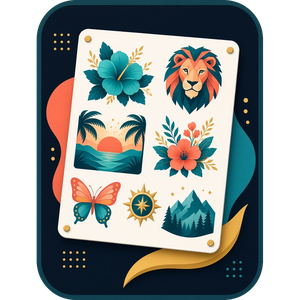
Sublimation paper and DTF film cost money every time you print. Put one mug design on an A4 sheet and most of the sheet goes in the bin. A gang sheet fixes that: you fit lots of designs onto one sheet, print once, then cut them apart. The hard part is the fitting, which is slow by hand in Canva or Photoshop and easy to get wrong.
This guide covers how to size your designs, fit them onto as little paper or film as possible, and print the sheet at exactly the right size, without Photoshop.
What a gang sheet is
A gang sheet is one print with several designs on it: six coasters, a mug wrap and some keyrings, or a whole order of different sizes. For sublimation it is a sheet of A4 or A3 paper. For DTF it is usually a strip of film off a roll, 22 inches or 30 cm wide, and you pay by the length you use.
Either way, the less empty space between designs, the less you pay per item.
1. Get your designs ready
- Use PNGs with a see-through background where you can. They pack tighter than designs on a white square, and DTF needs the background clear anyway.
- Know the print size each design needs: 90 mm for a coaster, 200 mm wide for a mug wrap, and so on.
- Check the picture is big enough. For sharp prints you want around 300 pixels per inch at the printed size. A design 100 mm wide needs to be about 1,200 pixels wide.
A picture that looks fine on screen can still print soft. If a design is only 600 pixels wide, keep it under about 50 mm on the sheet.
2. Fit them onto the sheet
Open Gang Sheet Builder in your browser and choose your paper: A4, A3, 13 × 19 inch, Letter, or a DTF roll. Set a small margin for your printer and a gap between designs so you have room to cut, 3 mm is a good start.
Add your designs, then for each one type the width or height you want and how many copies. The app fits them all in as tightly as it can and shows you every sheet as it goes. It will:
- Turn designs sideways when that fits more on the sheet
- Trim empty see-through edges so designs sit closer together
- Start a new sheet when one is full, or tell you how much roll you will use
- Warn you when a design is too small a picture to print sharply at the size you chose
If there is space left on the last sheet, select a design and press “Fill the rest of the last sheet”. It adds as many extra copies as will fit, so the space is not wasted.
3. Mirror it for sublimation
Sublimation transfers face down, so the print has to be back to front. Tick “Mirror for printing” before you save and the whole sheet is flipped for you. DTF does not need mirroring.
If you are not sure, print a test on plain paper first. Any words on the sheet should read backwards for sublimation.
4. Save and print at actual size
Save the print files as PNGs at 150 or 300 DPI. Each sheet is its own file, and each file carries its size, so it prints exactly right as long as you print at 100% or “actual size”. Never use “fit to page”, which shrinks everything.
For DTF, the see-through background stays see-through, so you can send the file straight to your printer software or to a DTF print service.
Common problems and how to fix them
- Everything prints too small. The printer has scaled it. Choose 100% or actual size and turn off “fit to page”.
- Designs print with white boxes round them. The design has a white background, not a see-through one. Remove the background first, or use the PNG version of the design.
- The print looks blurry. The picture is too small for the size you chose. Make it smaller on the sheet or use a bigger file.
- Words come out backwards on DTF. Mirror is ticked. Turn it off for DTF.
Try Gang Sheet Builder free in your browser. Adding designs and laying out your sheets are free, so you can see exactly how much paper you will use; a one-off licence, £14.99, unlocks saving the print files.
Related guides
New free patterns and apps
We’ll email you when we add a free pattern, a new app or a useful guide. No spam; unsubscribe any time.
See our privacy policy.